|
As a follow on to the last post, I have created several more web apps with text I previously used in my Ready Bible Study Windows application. It is much nicer to be able to access these references from any PC or Mobile device via a web browser. I hope these will benefit you or people you know who need to learn more about the Bible. (NOTE: It's important to refresh your web browser when using web apps to make sure the latest version is displayed. On PCs, when using say the "Bible Tools Launcher" just press F5 to refresh your local copy. All of the web apps show a Last Update date at the bottom. On Android devices you can swipe down on a page to reload/refresh it.) These references can be use standalone and can be saved to PCs and used without further internet access. Here is a link to a zip file containing everything. For PC users, they can download this and put its contents into a folder of their choice. The Bible Tools Launcher file contains links to all the other ones for convenience. 
Here is a screen shot from the Launcher file. 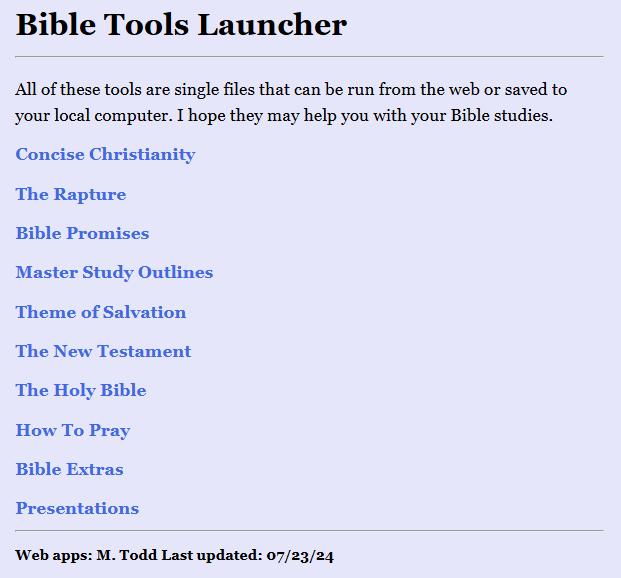 A web link to access the Launcher is here. Every file has a table of contents and the ability to search for words or phrases. The only file that is slow to search is "Bible Extras." I am not sure why that is. It does contain 5 long lists which searching has to go through from top to bottom. To help alleviate the need to search in that file, I created a "Daily Dose" option, which randomly displays one item from each of those 5 lists. As I find more materials, I will be adding to these files of creating additional ones then posting them. Here are more screen shots from the various reference files:  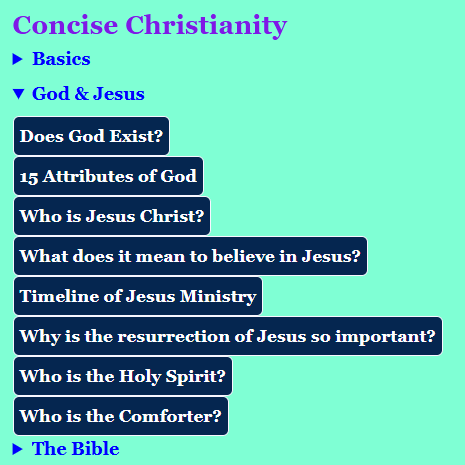 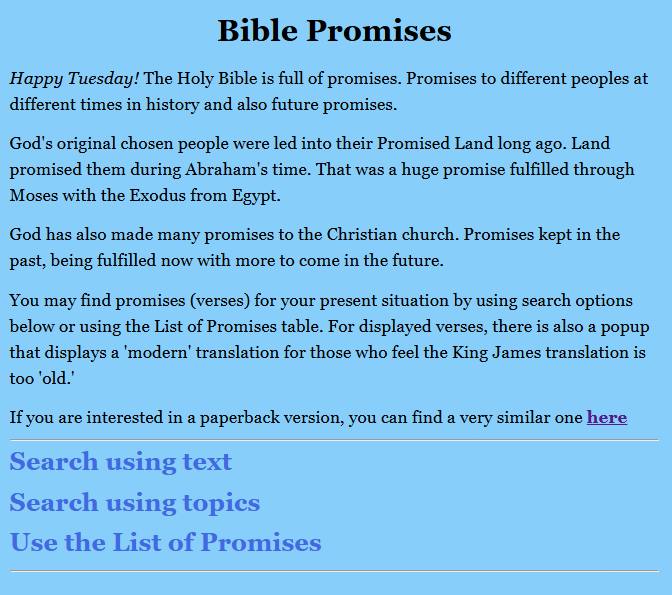 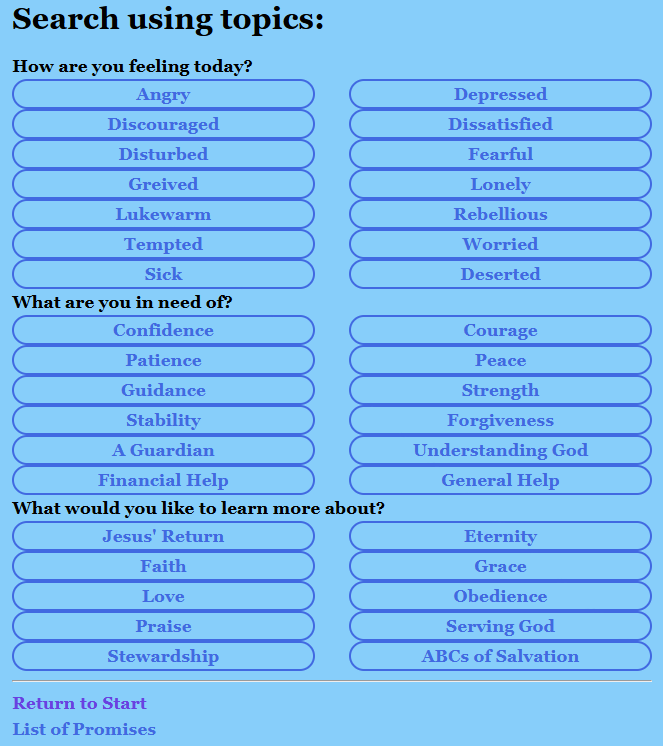 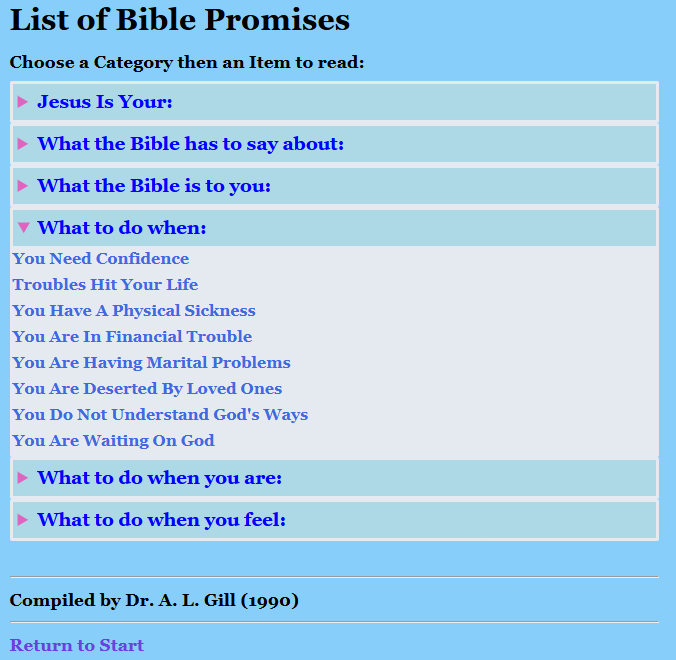 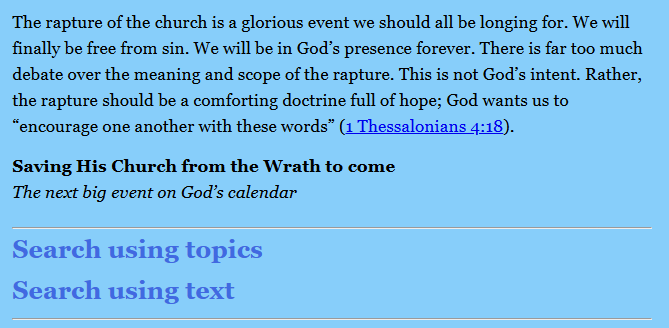 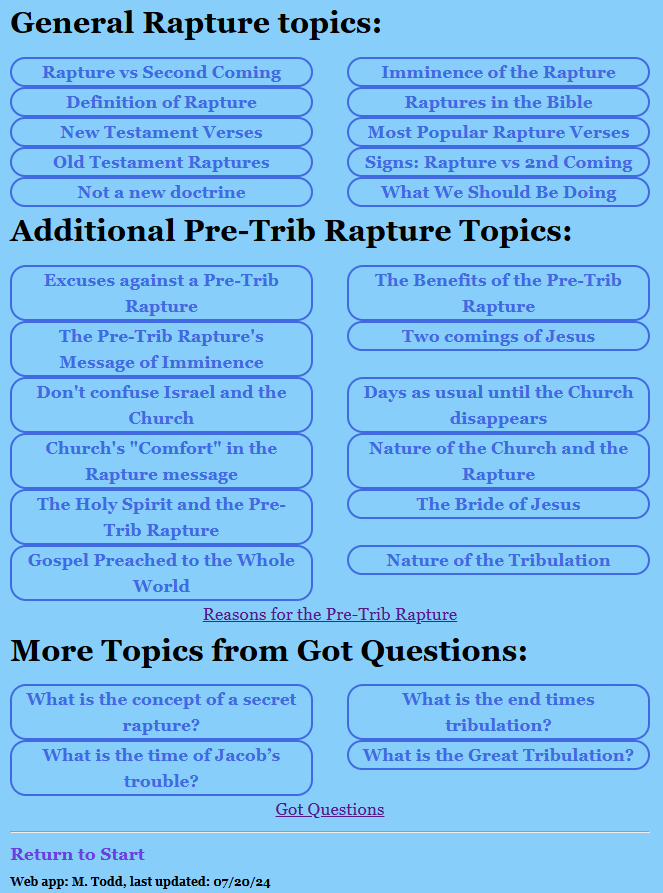 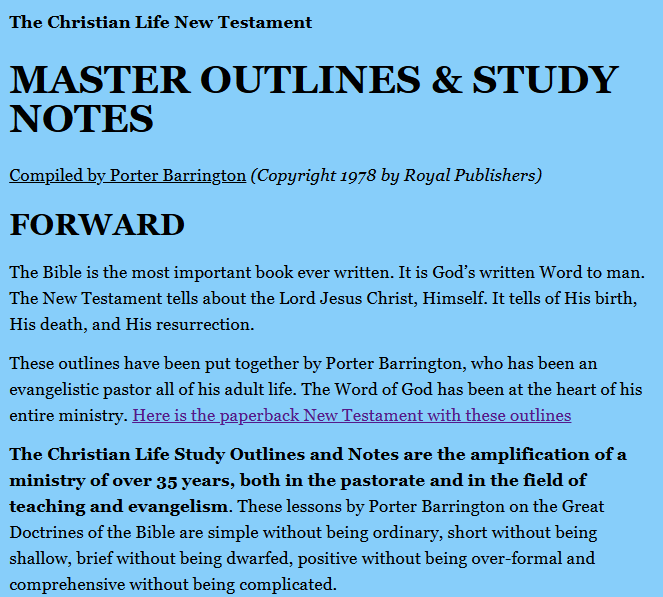 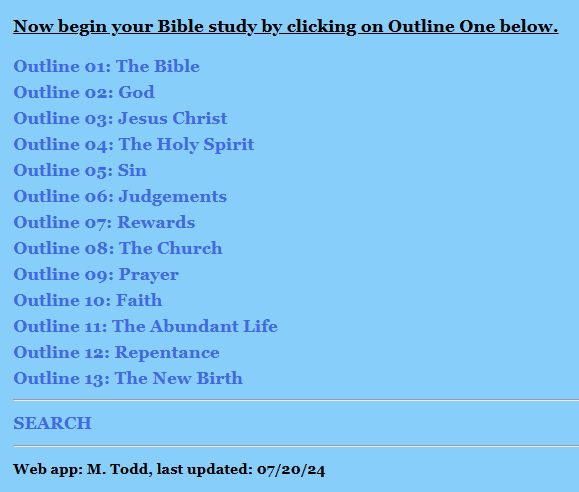  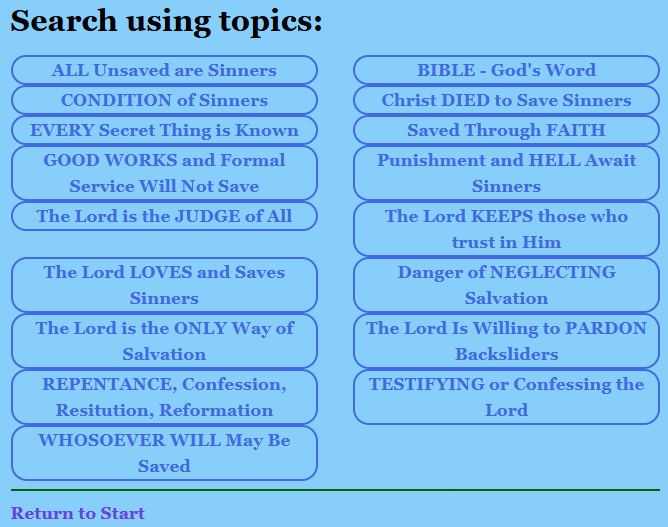 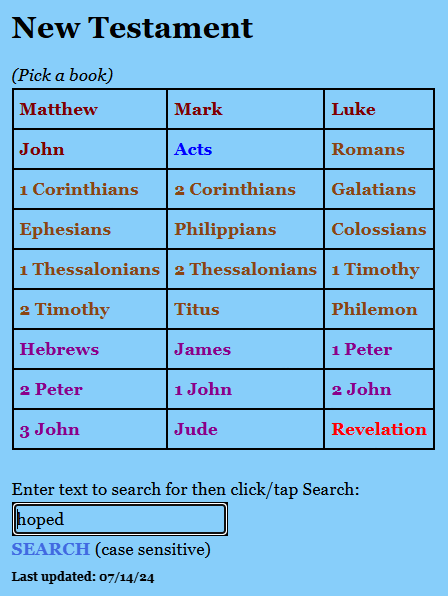 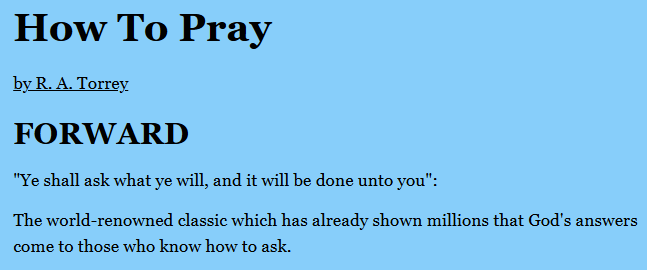 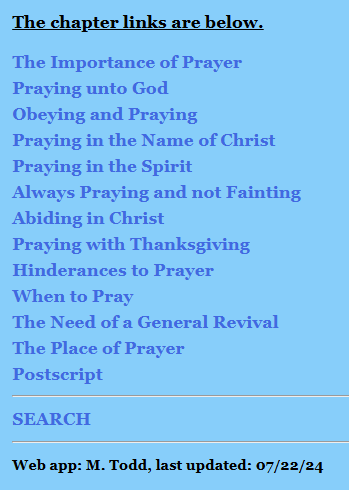 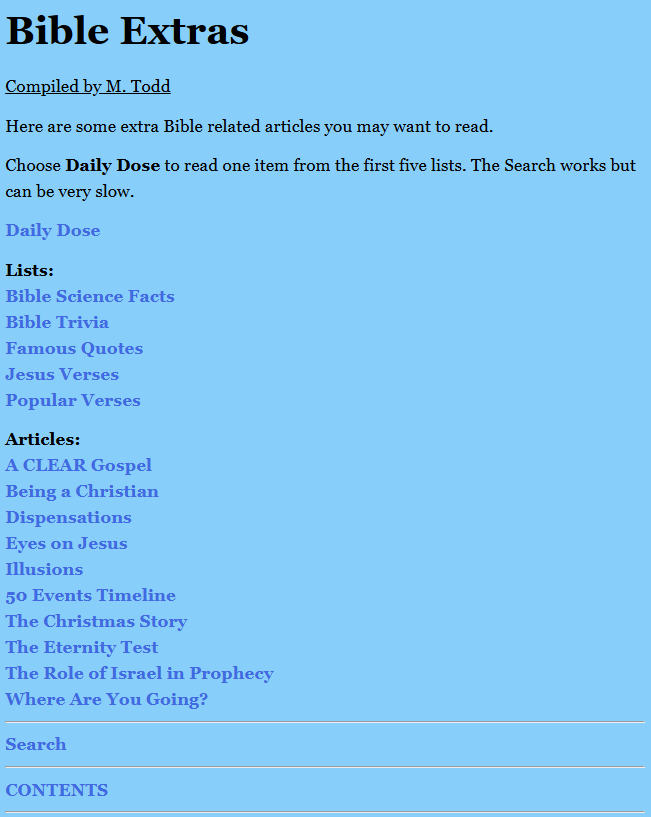 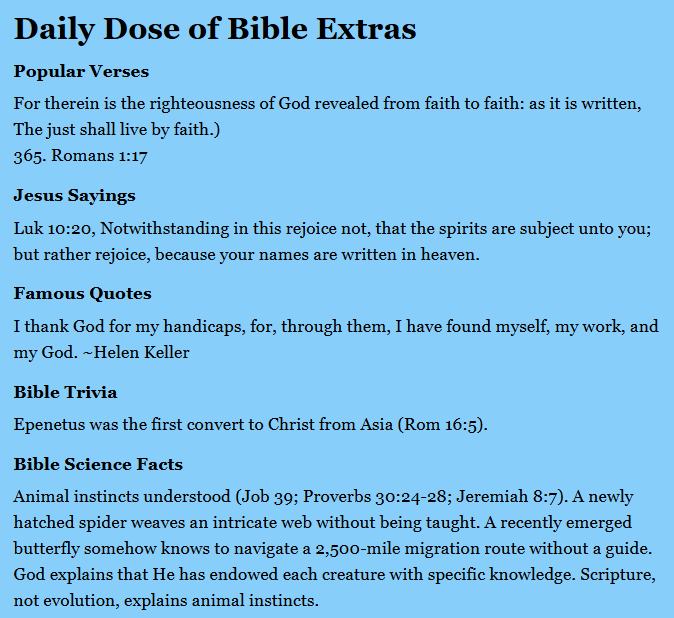
0 Comments
Last week I came across a program that I had not heard of before, Twine. It was first available back in 2009 and is primarily used to create Interactive Fiction. After reading up on it for a while, I thought perhaps it could be used to distribute Bible related information. After figuring out how to navigate, format text, set colors and other things, I started pulling a dozen or so articles from the venerable website, Got Questions. Almost any question a Christian can ask has been answered on Got Questions. Each article is well written and researched. I have a link to their site on the Contents page of this new reference that I call Concise Christianity. Periodically I will be adding more information from other sources but have to thank Got Questions immensely and will be donating to their ministry. You can click on Concise Christianity here or from this site's main web page via a button of the same name. When you do, you will see this page:  There are five sections of information. Clicking on any section will open it and close the others. For example: 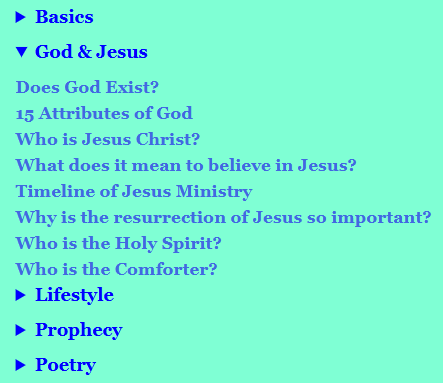 Clicking on any link will display an article for reading. Each section has a different background color, just to make it more pleasing. 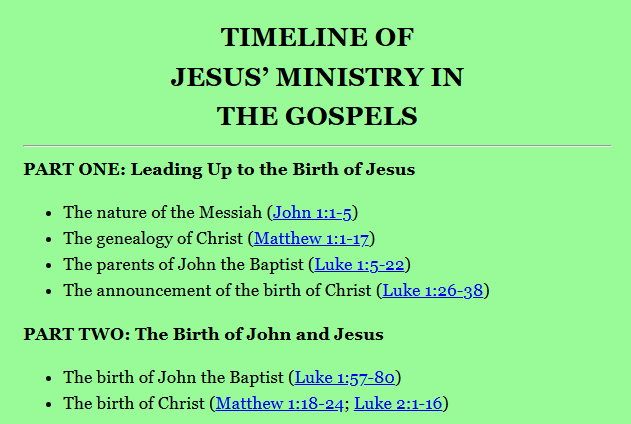 Many articles contain Bible references and they are revealed by clicking or tapping on them. 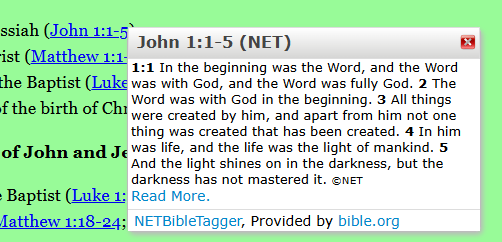 The NET Bible translation is used as it was the only java script code I could find that functioned properly on every article. Other articles have more text than references. 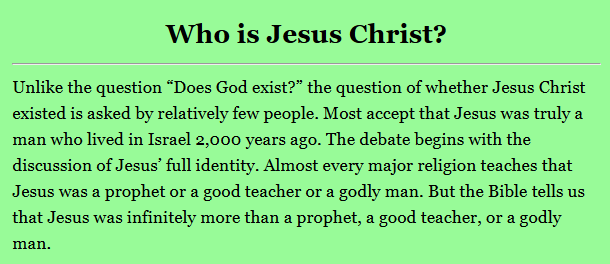 At the bottom of each article is an option to "Save Your Place" or bookmark it. Then from the Contents you can click on "Go to bookmark" to jump back to the marked page. At the very bottom is also a "<-- Back to Contents" link. At this time there is no general text search function available. But, navigation is very simple and quick.
I hope many of you will find it a help resource and pass it along to others. How do government leaders really get elected? Is it purely by votes or is another selection mechanism at work? See the slideshow here for more information.
By Maria Kneas, May 8th, 2024
Spiritual warfare is increasing. The spiritual atmosphere keeps getting darker. And in the world around us, we are seeing more and more evil. Shameless, in-your-face evil that we never could have imagined a few years ago. Rampant delusion and insanity. And widespread lawlessness that keeps increasing. As Christians, we need to do two kinds of reconnaissance in order to protect ourselves and our loved ones. And in order to be able to be effective in doing practical things to resist this evil. The first kind of reconnaissance that is needed is the obvious one of studying the enemy. Its strengths and weaknesses. Its strategies. And its practical tactics. Plus identifying its enablers. The second kind is something that we can easily overlook because we have become distracted by looking at the enemy and the damage that it is doing. And because we have become war weary. We need to study ourselves in order to see if there are any ways that the enemy can readily get at us. Do we have vulnerabilities? Do we have a soft underbelly, or an Achilles heel? Because if we do, then the enemy can harm us. And that will cause problems not only for us, but also for people we love. The Bible warns us about some things that we need to watch out for. I’m only mentioning a few here, but there are others as well. We need to be on guard for all of them. In addition, we can ask God to cleanse our hearts. Psalm 19:12 says, “Who can understand his errors? Cleanse me from secret faults.” Because of that Scripture passage, every day I ask God to deal with my blind spots. With the problems I have that I’m not aware of. (Or maybe only partially aware of.) To give me “ears to hear” what He is saying to me. To make me willing and able to see what He wants me see. And to make me willing and able to do whatever He wants me to do about it. With the way that the world keeps getting more and more evil and insane, all of us have to deal with fear and anger and discouragement. All of those are natural responses to being faced with evil. Especially when it sometimes seems to be overwhelming. For me, the primary problem is fear. (But sometimes I get quite angry.) For strong men, the primary problem is likely to be anger. (But they also have to deal with fear and discouragement.) For some people, the primary problem is discouragement. When discouragement hits, it’s good to remind ourselves that God is willing and able to keep us going until our tour of duty is over. We are weak, but Almighty God can enable us to be faithful soldiers. God can give us the strength and courage and faithfulness that we need in order to be able to do that. Of course, we all have other ways that the enemy of our souls can get to us. Weaknesses. And blind spots. And areas of vulnerability. And we all get war weary. Therefore, it’s good to keep asking God to deliver us from these areas of weakness and vulnerability. To make us aware of them and show us how to overcome them. To make us be strong enough to keep on fighting. And to enable us to fight effectively. When it comes to dealing with fear and discouragement, it helps to keep remembering Eternity. Our time down here on earth is SO brief compared to Eternity. While we are here on earth, time seems to go by slowly. But remember what the Apostle Paul said: “For our light affliction, which is but for a moment, is working for us a far more exceeding and eternal weight of glory.” (2 Corinthians 4:17) Remember who talked about a “light affliction” that was only “for a moment.” This is the Apostle Paul who was beaten, stoned and left for dead, thrown into a Roman prison, betrayed, shipwrecked, had times of extreme hunger, was attacked by mobs, etc. Now I’ll put that in terms of us personally, here in modern America. If some horribly evil people do something terrible to us, the worst that they can do is to cause temporary suffering and death. But if we love God, then we will be in Heaven with Jesus, rejoicing for all Eternity. And the same applies to the people we love. There are NO exceptions to Romans 8:28. God promised to make ALL things work out for the good of those who love Him. And therefore, no matter what anybody does to us, if we love God, then eventually we will look back at what happened to us and be grateful that we went through it because of the good that God brought out of it. A good example of that is what happened to Joseph in Egypt. His brothers meant it for evil. But God meant it for good. And God brought great good out of all of the suffering that Joseph went through. Not only for Joseph, but for his entire family. And for multitudes of people in Egypt. When dealing with anger, it helps to remember what the Apostle Paul said in Ephesians 6:12: “For we do not wrestle against flesh and blood, but against principalities, against powers, against the rulers of the darkness of this age, against spiritual hosts of wickedness in the heavenly places.” Remember that many of these seriously evil people are literally demon possessed. Or else they are being controlled by (or heavily influenced by) evil men and women who are possessed. Either way, they are being used by puppet masters. Our real enemy is the devil. Not the puppets. It also helps to remember Romans 12:19. The Apostle Paul said, “Do not take revenge, dear friends, but leave room for God’s wrath. For it is written, ‘Vengeance belongs to me. I will pay them back, declares the Lord.’” Now that does NOT mean letting evil people get away with things. We can fight them and their agenda tooth and nail. But at the same time, we can do that without hating them or trying to get revenge. In Matthew 5:44, Jesus told us: “But I say to you, love your enemies, bless those who curse you, do good to those who hate you, and pray for those who spitefully use you and persecute you.” How in the world can we do that with somebody as wicked as George Soros? Here are some things that help me do it: (1) We don’t know how they got that way. They may have been tormented and deceived and deluded since childhood. They may be possessed by demons. (2) Obviously they don’t deserve love and prayer. But neither do I. Because of my sins, I deserve to go to hell. But in spite of that, Jesus loves me and He forgave me. Therefore I should show my love and gratitude to Jesus by obeying Him. (3) The one thing that I can do for horribly wicked people is to pray for their salvation. That shows them love, and it blesses them, and it is praying for them. (4) Jesus paid a terrible price in order to enable those people to be able to get saved. And Jesus should get what He paid for. Therefore, I can pray for their salvation for the sake of Jesus. Because I love Jesus and I want Jesus to get what He paid for. (5) Forgiving is a way of showing loyalty to Jesus. It’s a way of showing Jesus that my love for Him is more important than my anger at those horrible people. That my relationship with Jesus is more important than my feelings about those people. The Bible gives us an important warning about anger. There can be righteous anger. We see that when Jesus turned over the tables of the money changers in the Temple. However, because of our sin nature, even our most righteous anger isn’t 100% righteous. And over time it can gradually morph into becoming unrighteous. Therefore, long-term anger can give the devil ways of getting at us. Only God is holy enough to have His anger be 100% righteous. And have it remain totally righteous. Here is what the Apostle Paul told us in Ephesians 4:26-27. He said: “Be angry and do not sin; do not let the sun go down on your anger, and give no opportunity to the devil.” Some translations use the term “place” but others say “opportunity.” The Greek word is “topos” and it is Strong’s 5117. It can mean place, situation, or opportunity. In military terms, that would be a beachhead. A place from which to launch an attack. Here is something that the Apostle Peter said. This applies to fear and anger and discouragement and any other kind of emotion. In 1 Peter 5:8 he said: “Be sober, be vigilant; because your adversary the devil walks about like a roaring lion, seeking whom he may devour.” The Webster 1828 dictionary gives five definitions of the word “sober.” One of them is, “Regular; calm; not under the influence of passion; as sober judgment; a man in his sober senses.” If we become overwhelmed by any kind of emotion, then that can impair our judgment. It can make us become less vigilant, because we have become preoccupied by our feelings. And that can give the devil (and his minions) an opportunity to get at us. Here is another important principle. Jesus told us to forgive. In Matthew 6:14-15, Jesus said: “For if you forgive men their trespasses, your heavenly Father will also forgive you. But if you do not forgive men their trespasses, neither will your Father forgive your trespasses.” Jesus said that immediately after giving the disciples the Lord’s Prayer. Obviously, forgiving is very important to Jesus. That’s a problem, because sometimes it can be VERY difficult to do. For example, I know a woman who had to forgive the drunk driver who killed her son. And Corrie ten Boom had to forgive the Nazi guards who tormented her and her sister Betsy in a German concentration camp. Betsy died there. There have been times in my life when I was hurt so deeply that it was very difficult to even want to try to forgive those people. I had to start out by asking God to make me be willing and able to forgive. Here are some things that have helped me forgive when it was difficult: (1) That person obviously does not deserve to be forgiven. But neither did I. Because of my sins, I deserved to go to hell. However, in spite of my sins, Jesus forgave me. Jesus was willing to be tortured to death on a cross, in order to enable me to be forgiven. (2) Jesus told me that because He forgave me, I should forgive other people. That includes people who have done harmful things to me and to people I love. I should forgive them. However, that does NOT mean allowing them to keep on doing harmful things. I can forgive the person and at the same time protect myself and my loved ones. (3) If I don’t forgive, then I am disobeying Jesus. I am rebelling against Jesus. How can I say that Jesus is my Lord and Master if I refuse to try to obey Him? (4) If I don’t forgive, then I have given my anger at that person priority over my love for Jesus. That is a form of idolatry. It is putting my feelings about somebody above the Lordship of Jesus. (5) Doing what Jesus tells me to do is a way of showing love and loyalty to Him. Therefore, I try to forgive out of loyalty to Jesus. And love for Jesus. And the desire to obey Jesus, who is my Lord and my Master. I want to be his “good and faithful servant.” (Matthew 25:21, 23) (6) When it’s really difficult, then I ask Jesus to make me be willing to forgive. With Corrie ten Boom, for her it was so difficult, that her starting point was to ask Jesus to make her be willing to be willing to forgive. The point is to move in the right direction, as much as we are able to. We are living in challenging times. But God knew when we should be born. And He has work for us to do here and now. Chuck Missler said that our time on earth is Boot Camp. That God is training us and preparing us and equipping us for the work that He has for us to do when Jesus rules and reigns from Jerusalem for a thousand years. And for whatever God has for us to do after that. God is faithful and He loves us. And God’s power is beyond our comprehension. Almighty God created the universe, and He holds it together with the word of His power. God’s love and power and wisdom and faithfulness have no limits. Therefore, no matter what happens to us, because we love God, He will make it work out for our long-term good. And when we get to Heaven, then we will look back and be grateful for everything that we went through because of the good that God brought out of it. Below are some references to what many believers call the Pre-Tribulation Rapture. The final Tribulation period described in the Book of Revelation is 7 years long and occurs right before the Second Coming of Jesus who will then rule and reign. Some teach the Church goes through half (Mid-Trib), most (Pre-Wrath) or all (Post-Trib) of the Tribulation period, but the Apostle Paul and others at the formation of the Christian church taught to always be on the lookout for Jesus' return in the clouds to gather His elect BEFORE the tribulation of those days. The Tribulation is also known as "the time of Jacob's trouble" which is another reason it is intended for Israel and not Christians. Everyone has to do their own research to see what view lines up best with Scripture. I find the removal of true believers before the Tribulation to make the most sense. Some believe tribulation is still about the Christian church and don't see Israel having much of a role. Other read the scriptures and see that this 7 year period is a time of testing only for the Jews and Israel as 2,000 years ago they did not see Jesus as their Messiah. This means we Christians are not to be punished or go through the same trials as the rest of the world. Paul and others wrote about the "blessed hope" Christians have in the soon return of Jesus. Here is a link to more about that. Below are some pics containing information on the Blessed Hope of the Church. Here is a link to a long study of reasons to believe the Pre-Trib view is the correct one. But, again, we each have to study to see what makes sense to us. Believing in God the Father and Jesus the Son is the most important thing. The current state of Israel is leading to what the prophet Zechariah wrote in chapter 12.
Zechariah 12 – Mourning for The Pierced One A. God defends Israel against her enemies. 1. (1-4) God supernaturally defends Israel against attack. The burden of the word of the LORD against Israel. Thus says the LORD, who stretches out the heavens, lays the foundation of the earth, and forms the spirit of man within him: “Behold, I will make Jerusalem a cup of trembling (drunkenness) to all the surrounding peoples, when they lay siege against Judah and Jerusalem. And it shall happen in that day that I will make Jerusalem a very heavy stone for all peoples; all who would heave it away will surely be cut in pieces, though all nations of the earth are gathered against it. In that day,” says the LORD, “I will strike every horse with confusion, and its rider with madness; I will open My eyes on the house of Judah, and will strike every horse of the peoples with blindness.” a. Thus says the LORD, who stretches out the heavens: The section begins with praise for God’s creative power, reminding us that He is in control and completely able to accomplish what He predicts. b. I will make Jerusalem a cup of trembling (drunkenness) to all the surrounding peoples: God says that in a coming day Jerusalem will intoxicate and stupefy the surrounding peoples. The Arab peoples surrounding Jerusalem have a passion for possessing the city that is not justified by history.
c. I will make Jerusalem a very heavy stone for all peoples: If Jerusalem will be a cup of drunkenness to all her surrounding peoples, it will be a heavy stone – a burden – for all peoples, presenting a problem that cannot be solved (all who would heave it away will surely be cut in pieces).
2. (5-9) God supernaturally empowers His people. “And the governors of Judah shall say in their heart, ‘The inhabitants of Jerusalem are my strength in the LORD of hosts, their God.’ In that day I will make the governors of Judah like a firepan in the woodpile, and like a fiery torch in the sheaves; they shall devour all the surrounding peoples on the right hand and on the left, but Jerusalem shall be inhabited again in her own place; Jerusalem. The LORD will save the tents of Judah first, so that the glory of the house of David and the glory of the inhabitants of Jerusalem shall not become greater than that of Judah. In that day the LORD will defend the inhabitants of Jerusalem; the one who is feeble among them in that day shall be like David, and the house of David shall be like God, like the Angel of the LORD before them. It shall be in that day that I will seek to destroy all the nations that come against Jerusalem.”
B. God gives Israel a spirit of humble repentance. 1. (10) Mourning for the pierced One. “And I will pour on the house of David and on the inhabitants of Jerusalem the Spirit of grace and supplication; then they will look on Me whom they pierced. Yes, they will mourn for Him as one mourns for his only son, and grieve for Him as one grieves for a firstborn.” a. And I will pour on the house of David and on the inhabitants of Jerusalem the Spirit of grace and supplication: Part of this great outpouring of strength and might to defend Jerusalem will be an outpouring of the Spirit – but for grace and supplication. God will move among Israel and bring saving grace and repentant prayer. b. Then they will look on Me whom they pierced. Yes, they will mourn for Him as one mourns for his only son: As Jerusalem is supernaturally defended and the Spirit is poured out on the nation, they will turn to Jesus, the pierced One. His head was pierced with thorns, His hands and feet were pierced with nails, and a spear pierced His side.
2. (11-14) The great mourning of repentance. “In that day there shall be a great mourning in Jerusalem, like the mourning at Hadad Rimmon in the plain of Megiddo. And the land shall mourn, every family by itself: the family of the house of David by itself, and their wives by themselves; the family of the house of Nathan by itself, and their wives by themselves; the family of the house of Levi by itself, and their wives by themselves; the family of Shimei by itself, and their wives by themselves; all the families that remain, every family by itself, and their wives by themselves.” a. A great mourning in Jerusalem: The repentance that comes to Israel in that day will be like a great mourning, the ultimate fulfillment of the Day of Atonement, the day of national mourning over their greatest sin – rejecting Jesus. b. Like the mourning at Hadad Rimmon: This refers to the mourning over King Josiah’s death (2Ki_23:29 and 2Ch_35:20-25). He was such a godly king that the whole nation wept bitterly at his death. c. And the land shall mourn, every family by itself: This indicates there will be both great individual repentance and great corporate repentance. It seems fantastic to us that Israel as a whole would turn to Jesus and repent of their sin of rejecting their Savior – it is so amazing that we would not believe it unless the Bible so clearly taught it.
|
AuthorHas over 30 years experience in Information Technology and, more importantly, 30 plus years as a believer in Jesus Christ. Archives
June 2024
Categories
All
|
||
 RSS Feed
